What does refresh rate mean, and do you need 120Hz or more?
What monitor refresh rate means, how much you actually need for work and games, and what your computer has to deliver.
On this page
Refresh rate is one of the first numbers on a monitor box, and one of the easiest to misread. This source-informed explainer covers what it means, what it does not mean, and how to check that you are actually getting the number you paid for. We read the manufacturer pages for the monitors below and the relevant standards. We did not measure motion performance ourselves.
What it is
RTINGS defines a monitor's refresh rate as how many times per second it refreshes the screen from the top to the bottom edge, and says that generally a higher refresh rate can provide smoother motion. A 60 Hz screen redraws 60 times a second, a 120 Hz screen 120 times and so on. The unit is hertz.
It is separate from frame rate. Frame rate is how many pictures your computer produces each second. Refresh rate is how often the screen can show a new one. A 165 Hz monitor cannot show 165 different pictures a second if the computer only produces 70.
What you can see
Higher refresh rates are most visible in fast motion: games, scrolling and moving the cursor. For reading, writing, spreadsheets and video playback at standard frame rates, 60 Hz is usually enough, and extra refresh rate adds less. The benefit also needs your computer to deliver more frames, so a modest graphics card on a high refresh monitor may never use the headroom.
The monitors in this article show how the numbers vary. Samsung lists the Odyssey G55C at up to 165 Hz, Dell lists the S2725QS and S2725QC at a standard 120 Hz at 4K, and Samsung lists the Essential S3 at a maximum of 100 Hz.
It depends on your computer
The Samsung S36GD page says the maximum refresh rate is 100 Hz, but that the default is 60 Hz and the monitor must be set to 100 Hz in its settings. That is a useful reminder: a number on the box is a capability, not a guarantee of what you are seeing. After you connect any monitor, open your operating system's display settings, confirm the refresh rate it reports and change it if needed. A wrong cable or port can also hold you at a lower rate.
Where each tier fits
Examples covered here include Dell S2725QS, Dell S2725QC, Samsung Essential S3 and Samsung Odyssey G55C.
For office work and general use, 60 to 100 Hz is enough, and a 100 Hz screen such as the Essential S3 is a modest step above 60. For mixed use with some gaming, 120 to 165 Hz is a comfortable range. For fast competitive games on a strong graphics card, 165 Hz and above may be worth considering. Above that, gains get smaller and the demands on the computer get larger. Pick the refresh rate your computer can actually feed, at the resolution you want, over the largest number on a spec sheet.
Related terms
Refresh rate is how often the screen can update. Response time is how quickly a pixel changes color. Makers quote response time in different ways. Samsung quotes 1 ms MPRT for its Odyssey models, while Dell quotes 4, 5 and 8 ms grey to grey for the S2725QS in different modes. Those are not the same measurement, and a smaller number from one method cannot be compared directly with a number from the other. We did not measure either.
Cables and settings
The refresh rate you can reach depends on the resolution and the connection. The HDMI Licensing Administrator describes HDMI 2.1 as supporting up to 48 Gbps, with 4K at up to 120 Hz and 8K at 60 Hz. VESA says DisplayPort 2.1 certified cables are available at 40 Gbps and 80 Gbps tiers. The Dell S2725QS lists HDMI inputs with 4K at 120 Hz and a DisplayPort 1.4 input, while the Samsung G55C lists a DisplayPort 1.2 and an HDMI 2.0 input. If your graphics card or laptop port, your cable and your monitor input do not all support the combination, you will land on a lower setting.
Adaptive sync: matching the screen to the frames
When the frame rate and the refresh rate do not match, motion can tear or stutter. Adaptive sync lets the monitor change its refresh rate to follow the frames. AMD describes FreeSync as synchronizing the display to the frame rate of compatible graphics cards, built on DisplayPort Adaptive-Sync and also supporting HDMI Variable Refresh Rate. AMD lists three tiers. FreeSync Premium and Premium Pro require low framerate compensation, and the tiers set different minimum refresh rate requirements for the monitor. The Samsung G55C lists AMD FreeSync, and Samsung's page for the related Odyssey G5 G51F footnotes that FreeSync works only with a compatible AMD graphics card, so check what your own card supports. A monitor listing a sync feature does not guarantee it will work with every card and cable.
Is it worth paying for?
- Look up the maximum refresh rate at your resolution, not just the headline number.
- Confirm your cable and port support it.
- Set the rate in your operating system after connecting.
- If you use adaptive sync, confirm your graphics card supports it with that monitor.
Samsung 32" Odyssey
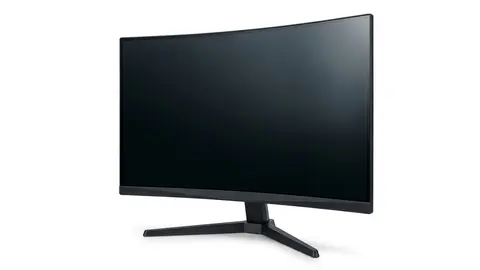
A 32-inch QHD curved VA monitor with up to 165 Hz.
Dell S2725QS 27-inch 4K Monitor
A 27-inch 4K IPS Dell monitor with a 120 Hz standard rate.
Samsung 27" Essential S3
A 27-inch FHD curved VA monitor, up to 100 Hz once set in the menu.
Dell S2725QC 27-inch 4K Monitor
A 27-inch 4K IPS Dell monitor with a USB-C input and 120 Hz.
Read more
See 1440p or 4K for the resolution side of this trade-off, monitor specs explained for the rest of the spec sheet and how to choose a monitor for putting it together.
Be careful with
Paying for a very high refresh rate your computer cannot reach, or leaving the monitor on a lower default rate.
The practical answer
Choose the refresh rate your computer can feed, confirm it in settings, and check the cable and ports before blaming the monitor.
Questions people ask
Do I need 120Hz?
Not for work. It feels smoother, and many people like it, but it is a preference.
Does refresh rate need a strong computer?
For games, yes. The graphics card must produce that many frames.
What is FreeSync?
A technology that syncs the screen to the graphics card to reduce tearing.
Is higher always better?
Only if your system can use it.
Sources and scope
Reference material is linked for the scope described below. This is not a claim that every statement or current retailer offer has been independently verified.
- A monitor's refresh rate: how much does it matter? (RTINGS.com): refresh rate definition
- AMD FreeSync technology (AMD): adaptive sync tiers and requirements
- HDMI 2.1 specification overview (HDMI Licensing Administrator): interface standard
- VESA releases DisplayPort 2.1 specification (VESA): interface standard
- Odyssey G55C 32 inch QHD curved gaming monitor (Samsung): manufacturer specifications
- 27 inch S36GD FHD curved monitor (Samsung): manufacturer specifications
- Dell 27 Plus 4K monitor S2725QS (Dell): manufacturer specifications
No hands-on testing or systematic reliability study was performed. Confirm current instructions, seller, model and box contents before ordering.