Is the Wacom Intuos Medium worth it?
A research based review of the Wacom Intuos Medium Bluetooth pen tablet: who it suits, who should skip it and what to check first.
On this page
This is a source-informed review, not a hands on test. We read Wacom's own pages for the Intuos range and its comparison of entry-level and professional devices, plus Huion's page for the Kamvas 13 Gen 3 as an alternative. We did not draw on the tablet, so nothing here describes how the pen feels.
What it is
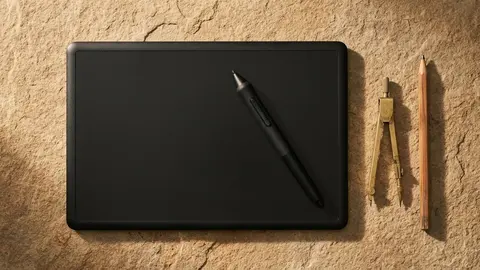
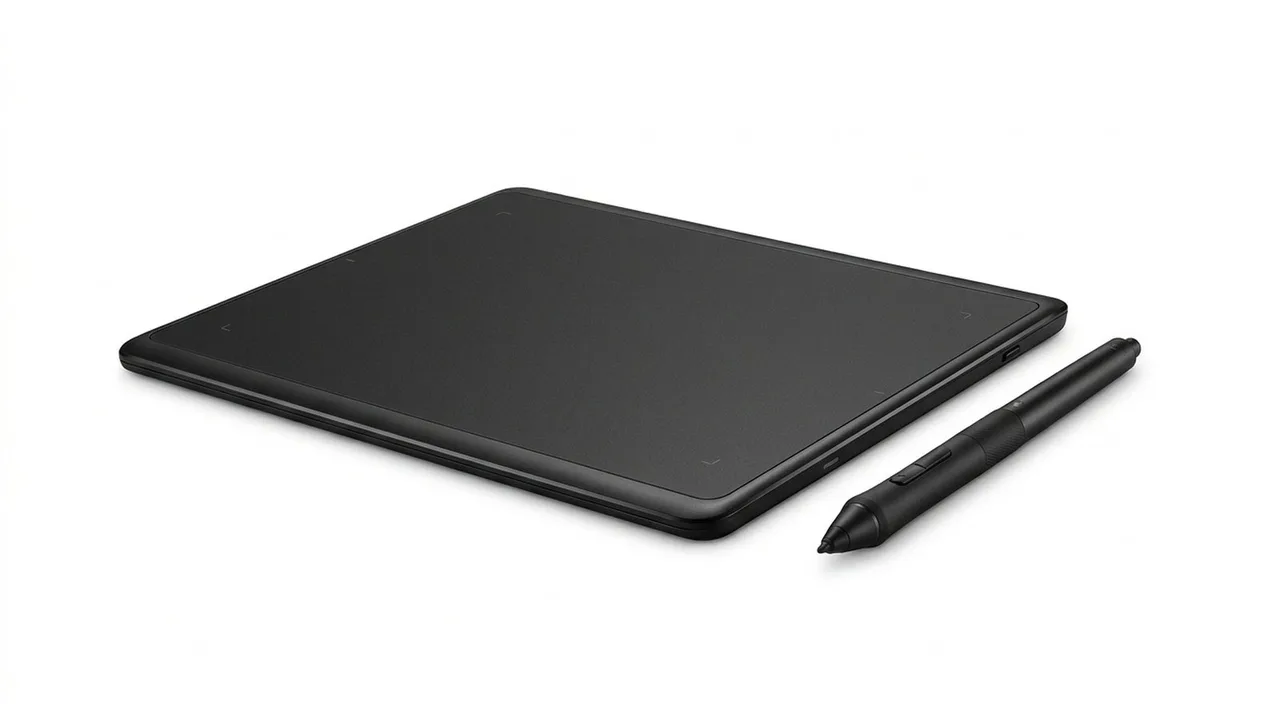
The Wacom Intuos Medium is a pen tablet: a flat pad with no screen. You draw on the pad and look at your monitor. Wacom lists the Medium as model CTL-6100WL with Bluetooth, an active area of 216 by 135 mm and a size of 264 by 200 mm. Wacom lists the weight at 410 g.
The pen and the pad
The pen is Wacom's Pen 4K, which Wacom lists as battery free and as having 4,096 pressure levels, 2540 lpi resolution and a reading height of 7 mm. The pad has four customisable ExpressKeys and the pen has two buttons. Wacom lists ExpressKeys as supported on Windows and Mac only. Wacom's page does not mention tilt support for the Intuos, which matters if you shade by angling the pen, so check before you buy.
Connection and battery
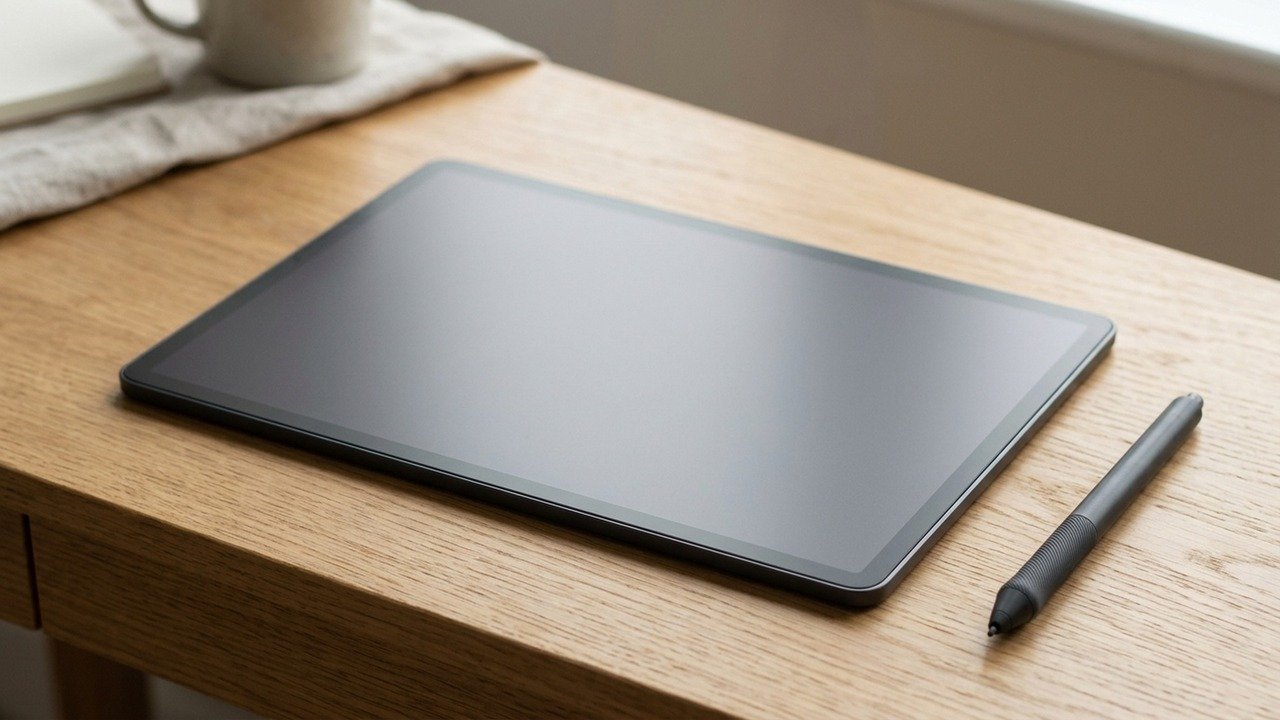
The Medium uses Bluetooth, and Wacom lists a built-in battery rated for at least 15 hours of continuous use with a charging time of up to 3.5 hours. It also connects by a USB cable. Wacom lists Windows 7 or later, macOS 10.15 or later, Android 6.0 or later with OTG and ChromeOS, with the driver available for Windows and Mac only. Wacom lists a one year warranty.
Who it suits
Beginners, students, photo retouchers and anyone who wants to try digital drawing without a screen. Wacom's own article describes Intuos as suited to beginners and enthusiasts and says a pen tablet works like a precise mouse that you use while watching the screen. It also suits people who annotate documents or sign with a pen.
Who should skip it
If you want to draw directly on the image, a pen display fits better. Huion lists the Kamvas 13 Gen 3 as a 13.3-inch, 1920 by 1080 screen with a battery-free pen with 16,384 pressure levels and plus or minus 60 degrees of tilt. Wacom's article says pen displays suit illustrators and digital painters but usually stay tethered to a desk. Skip the Intuos too if you need tilt, since the page does not list it, or if you work in a very tight space, since the Medium is 264 by 200 mm.
What the pressure numbers mean
Wacom's article says most beginners cannot tell the difference between the Intuos pen and a higher pressure professional pen. Huion lists 16,384 levels on its pen. These numbers come from different makers and different sensor designs, so treat them as labels, not a ranking. How the pen feels to you matters more.
Included software
Wacom lists a bundle that, per its page, requires a Wacom ID and product registration, with availability depending on your operating system. The page lists Clip Studio Paint Pro with a two year licence and trials of several other programs. The page also says "up to four" applications in one place and lists eight in another, so check what your region offers.
What is in the box
Wacom lists the tablet, the Pen 4K, a USB cable, three extra standard nibs, a nib removal tool and a quick start guide. Felt and flex nibs are sold separately. The pen needs no battery, because Wacom lists it as battery free, so there is nothing to charge on the pen itself. The tablet's own battery is non-replaceable, which is worth knowing if you expect to keep it for many years.
What to check
Confirm that your operating system is on Wacom's list, and that your computer has a USB-A port or an adapter, since Wacom lists a USB-A to Micro-B cable. Decide whether you need tilt, and if you do, look at a pen that lists it. Check the software offer for your region, and note that the Medium's 216 by 135 mm area is a different shape from a laptop screen, so you will want to set the mapping.
Wacom also lists a Small size at 152 by 95 mm, which suits a crowded desk, and a one year warranty on both. We did not test either, and the Small is a smaller drawing space than the Medium.
Learning curve
Expect a few hours to adjust to looking at the screen while drawing on the pad. This is general guidance, not a test.
Getting good results
Set the pad's mapping to match your monitor so circles stay round. Install the driver from Wacom, set pressure to taste and assign the ExpressKeys and pen buttons to the shortcuts you use most. A drawing glove can help if your hand drags on the surface.
How it compares
A pen display costs more and takes more space, but allows direct drawing. A pad is cheaper and more portable. Huion lists a 3-in-1 cable with the Kamvas, with a full featured USB-C cable available separately. See drawing tablet specs explained and how to choose a drawing tablet.
Wacom Intuos Medium
A Bluetooth pen tablet with a 216 by 135 mm active area and a battery-free pen.
HUION Kamvas 13 Gen 3
A 13.3-inch, 1920 by 1080 pen display with dials and a tilt-capable pen.
Be careful with
Expecting to draw naturally in the first hour, or assuming tilt support that Wacom's page does not list.
Verdict
A sensible first tablet if you are happy to draw on a pad and watch a screen. If you already know you need to draw on the image, shop for a pen display instead.
Questions people ask
Is it good for beginners?
It is aimed at them, with pen and bundled software.
Does it have a screen?
No, it is a pad. You watch your monitor.
Is it wireless?
The listing names Bluetooth. Check the details.
Is medium big enough?
For most desks, yes.
Sources and scope
Reference material is linked for the scope described below. This is not a claim that every statement or current retailer offer has been independently verified.
- Wacom Intuos pen tablet (Wacom): manufacturer specifications
- Wacom Intuos Medium Bluetooth CTL6100WLK0 (Wacom eStore): manufacturer specifications
- Differences between entry-level and professional Wacom devices (Wacom Community): manufacturer buying guidance
- Huion Kamvas 13 (Gen 3) (Huion): manufacturer specifications
- How do I connect the Huion Kamvas 13 (Gen 3) to my computer? (Huion Support): manufacturer setup instructions
No hands-on testing or systematic reliability study was performed. Confirm current instructions, seller, model and box contents before ordering.