What the specs on a docking station listing really mean
What the specs on a docking station listing really mean: ports, video outputs, power delivery, bandwidth and DisplayLink explained.
On this page
Dock listings pile up port counts and acronyms. This source-informed explainer decodes them using Plugable's own pages for the UD-3900 dual HDMI dock and the UD-ULTCDL triple display dock, plus Synaptics' DisplayLink explanation and Intel's Thunderbolt 4 page. We did not test either dock.
Ports in one
A headline like "13 in 1" counts every connector and function, including some that most people will never use. Ask which ones you will plug in. A count tells you little about how fast any of them can run, or whether they can all run at once.
Video outputs
Examples covered here include Plugable Dual 1080p HDMI dock.
The two Plugable pages show how different these can be. Plugable lists the UD-3900 with two HDMI outputs at up to 1920 by 1200 at 60 Hz and says it does not do 4K. It lists the UD-ULTCDL with three HDMI outputs, one of them at HDMI 1.4 through the host and two at HDMI 1.3 through DisplayLink, where one comes through DisplayPort Alternate Mode at up to 4K at 30 Hz and two are DisplayLink outputs at 1080p at 60 Hz. The resolution and the refresh rate are separate limits, so read them per output, not per dock.
Power delivery
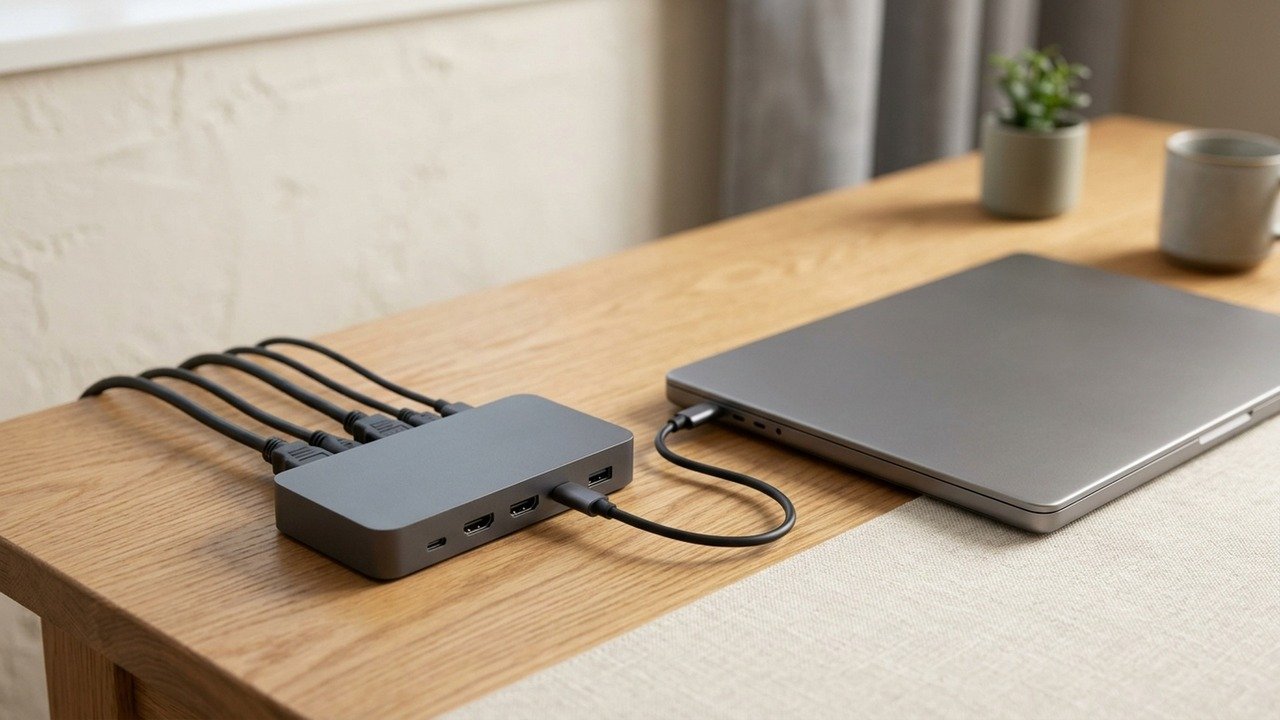
Plugable lists charging of up to 100 W for the UD-ULTCDL and no laptop charging for the UD-3900. Power delivery only helps if the dock's wattage meets what your laptop needs, so compare it with the charger that came with the laptop. A dock with less power than the laptop needs may charge slowly or not at all.
Bandwidth
Everything on a dock shares one connection to the laptop. Intel lists Thunderbolt 4 at 40 Gbps with support for two 4K displays at 60 Hz and up to 100 W charging, which is far more headroom than the USB connections these Plugable docks use. If you plan to run fast storage, several screens and a network at once, bandwidth is the spec to watch.
Content protection
Plugable lists HDCP as unsupported on the UD-ULTCDL. That matters for some streaming services, which may refuse to play protected video on an output without it.
DisplayLink
Native video passes a signal from the laptop's own graphics through the cable. DisplayLink, as Synaptics describes it, sends compressed video over USB and uses a driver to draw the extra screens. Plugable lists a driver requirement for both docks' DisplayLink outputs. DisplayLink adds screens when the laptop's own ports cannot, but it adds a software dependency and uses some processor time. Plugable also states the UD-3900 is not meant for gaming.
Compatibility
Plugable's pages list operating system and host port requirements. Your laptop must have the right port, and for DisplayLink the right driver for your operating system. Check the list before you buy, not after.
Ports that the headline number hides
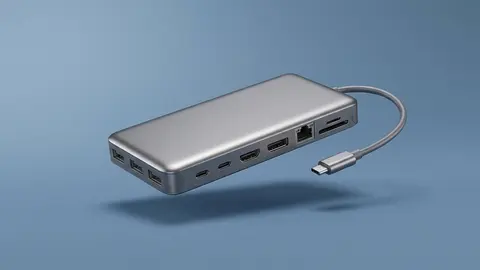
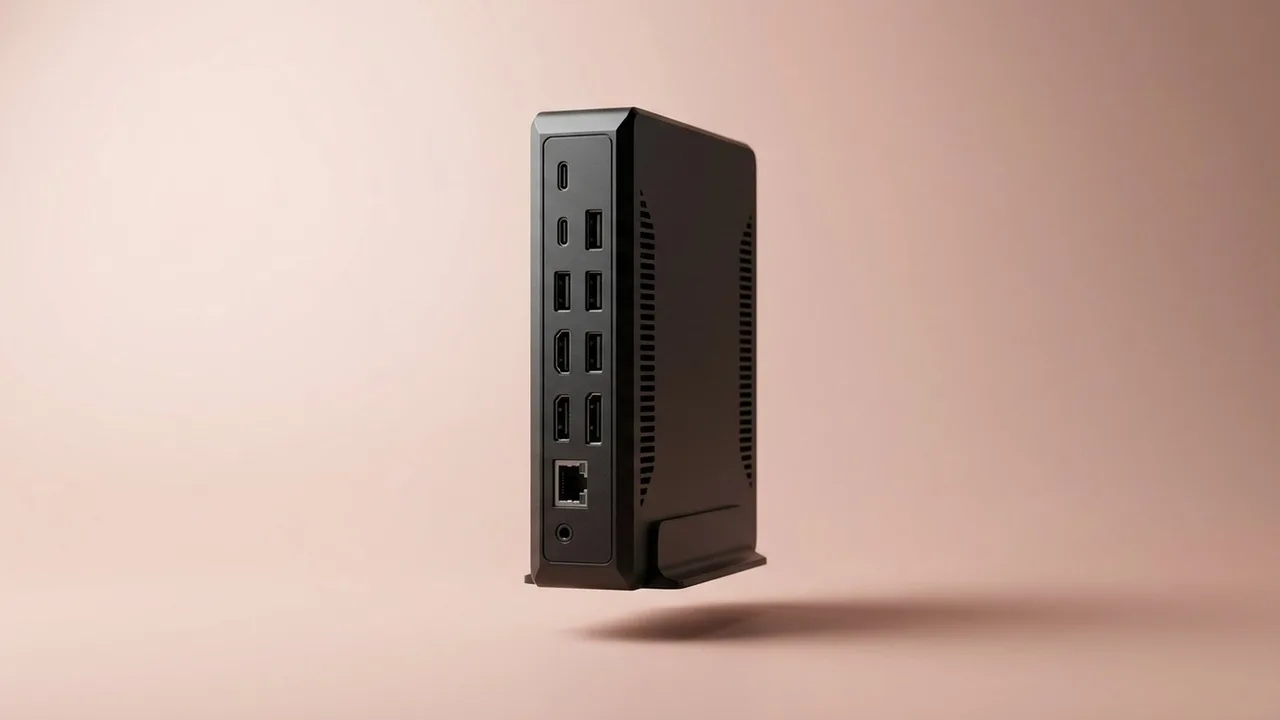
Plugable's page for the UD-3900 lists two USB 3.0 Type-A ports at the front, four USB 2.0 Type-A ports at the rear, Gigabit Ethernet and 3.5 mm headphone and microphone jacks. Its single connection to the computer is USB 3.0 at 5 Gbps. The UD-ULTCDL page lists four USB 3.0 Type-A ports, a front USB-C port that supplies 20 W for accessories only, a UHS-II SD card reader, Gigabit Ethernet and audio jacks, again behind one USB-C host connection at 5 Gbps. In both cases the ports share that one 5 Gbps link, so an external drive, a network transfer and two screens all draw on it together.
The front USB-C on the UD-ULTCDL is a useful detail. Plugable says it cannot be the host connection, so it is for a phone or tablet, not for a second laptop.
Power adapters
Docks usually need their own power supply. Plugable lists a 20 W adapter for the UD-3900, since the dock does not charge the laptop, and a 135 W adapter for the UD-ULTCDL, which supplies up to 100 W to the host. If a listing mentions charging, find the adapter's wattage as well as the charging figure, because the two must add up.
Operating system support
Plugable lists Windows 10 and 11, macOS with DisplayLink Manager, and ChromeOS 100 or later without a driver for both. It lists Linux as not compatible for the UD-3900 and does not mention it for the UD-ULTCDL. Some of the macOS statements on Plugable's pages disagree about the minimum version, so check the support list for your Mac before you buy.
A quick reading order
Read a dock listing in this order: which port connects to the laptop and what it must support, how many screens and at what resolution and refresh rate, whether it charges and at what wattage, which drivers and operating systems it lists, and finally the ports. Reading the ports first is how people end up with a dock that has the right sockets and the wrong video limits.
Put it together
Read how to choose a docking station, our Plugable review and the multi monitor guide.
Plugable Dual 1080p HDMI Universal Docking Station
Two HDMI outputs at up to 1920 by 1200 at 60 Hz, DisplayLink driver, no laptop charging.
Plugable USB-C Triple Monitor Docking Station
Three HDMI outputs, up to 100 W charging, DisplayLink for two of them, HDCP not supported.
Be careful with
Counting ports without checking the resolution, refresh rate and driver needs of each video output.
The practical answer
Check video limits per output, the power delivery against your charger, and the driver and port requirements for your laptop. The number of ports comes last.
Questions people ask
What does 13 in 1 mean?
Thirteen ports or functions in one dock.
What is power delivery?
Charging your laptop over the dock's cable.
What is DisplayLink?
Video over USB with a driver.
Do all ports run at full speed together?
Not always. Bandwidth is shared.
Sources and scope
Reference material is linked for the scope described below. This is not a claim that every statement or current retailer offer has been independently verified.
- Plugable USB-C triple display docking station UD-ULTCDL (Plugable): manufacturer specifications
- Plugable universal dual monitor docking station UD-3900 (Plugable): manufacturer specifications
- How does DisplayLink work? (Synaptics DisplayLink): technology explanation by the vendor
- What is Thunderbolt 4 and how is it different from USB-C? (Intel): interface standard
No hands-on testing or systematic reliability study was performed. Confirm current instructions, seller, model and box contents before ordering.