How to connect three monitors to one laptop
How to connect three monitors to one laptop: ports, docks, DisplayLink, bandwidth limits and the cables that matter.
On this page
This is a source-informed explainer, not a hands on test. We read Plugable's pages for two docks, Synaptics' DisplayLink explanation, Intel's Thunderbolt 4 page, Apple's MacBook Neo specifications and Microsoft's pages on multiple monitors and window snapping. We did not set up any of these. Always confirm compatibility with your laptop maker.
Start with your laptop's limits
How many screens a laptop can drive depends on its graphics hardware and its ports. Apple lists the MacBook Neo as supporting one external display, up to 4K at 60 Hz, through its USB 3 port with DisplayPort 1.4. Other laptops differ, so read the maker's page for your exact model. A dock cannot add a native output that the laptop does not have, though DisplayLink can add screens in software, as described below.
Native video versus DisplayLink
A dock that relies on the laptop's own video passes the signal along, so the number of screens depends on the laptop. Synaptics describes DisplayLink as sending video over USB with a driver, which can add screens the laptop's ports cannot, at the cost of a software dependency and some processor use. Plugable lists a DisplayLink driver requirement for both docks, and states HDCP is not supported on the DisplayLink outputs.
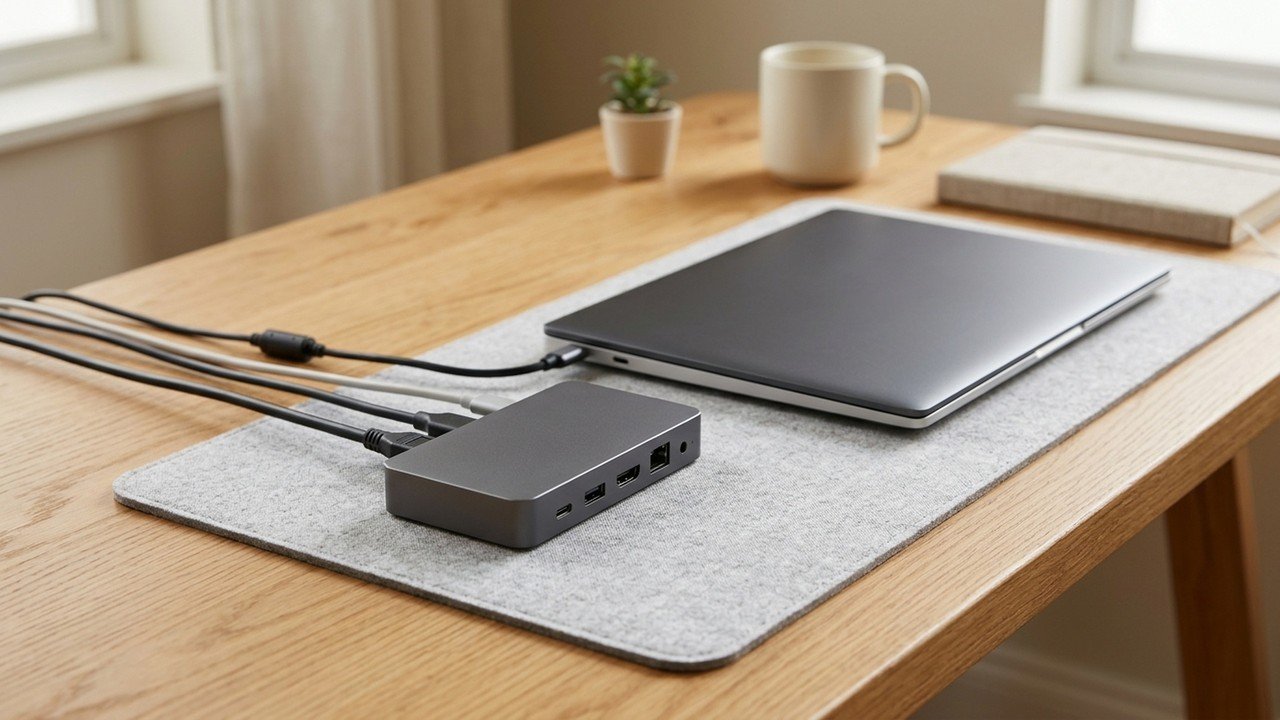
The two docks in this group
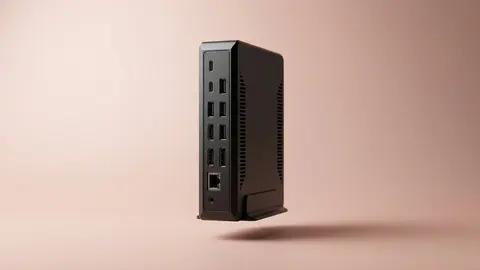
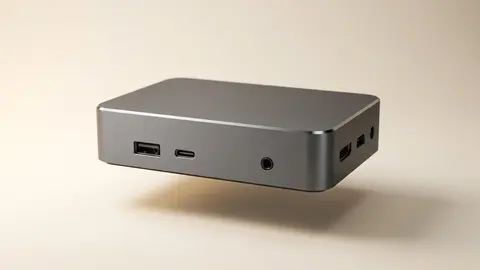
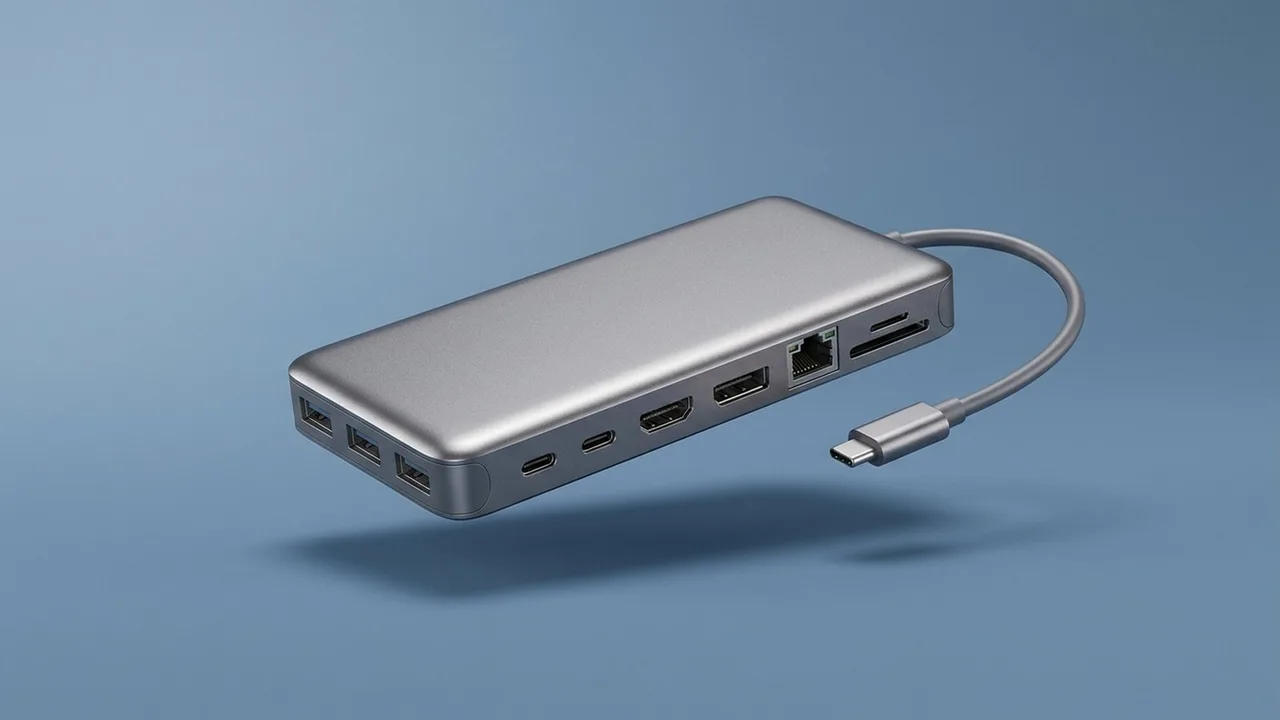
The Plugable UD-3900 adds two HDMI outputs, listed at up to 1920 by 1200 at 60 Hz each, using DisplayLink. It does not charge the laptop and Plugable says it is not meant for 4K or gaming. The Plugable UD-ULTCDL lists three HDMI outputs, with one through the host's DisplayPort Alternate Mode at up to 4K at 30 Hz and two through DisplayLink at 1080p at 60 Hz, plus up to 100 W of charging. Plugable's compatibility list for the UD-ULTCDL names Apple M1 to M5 chips and the MacBook Neo. Used on its own with a compatible laptop, the UD-ULTCDL gives three external screens, as long as the laptop meets Plugable's requirements.
When Thunderbolt is the better route
Intel lists Thunderbolt 4 at 40 Gbps with support for two 4K displays at 60 Hz and up to 100 W charging. If you want sharper or faster screens than DisplayLink offers, a Thunderbolt 4 laptop and dock is the route to check, and the laptop must support it.
Cables and ports
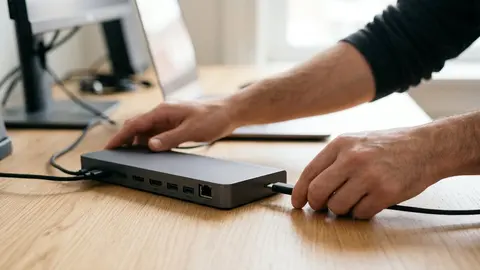
Match the dock's connection to your laptop. Plugable says the UD-ULTCDL needs a fully featured USB-C port with DisplayPort Alternate Mode and power delivery, such as Thunderbolt or USB4, and that data-only ports will not work. Use the cable that comes with the dock, or one rated for the data and power you need.
Power
A dock with power delivery can charge the laptop through the same cable. Plugable lists up to 100 W for the UD-ULTCDL and none for the UD-3900. Check the wattage against what your laptop needs.
Setting it up
Microsoft's guide says to check that cables are firmly connected, install pending updates, and then use Settings, System, Display, Multiple displays and select Detect if a screen does not appear. Windows key plus P switches between Extend, Duplicate, PC screen only and Second screen only. Drag the displays in Display settings to match your desk, then select Apply and move the pointer across to confirm. Microsoft's snap guide covers arranging windows across the screens.
Setting it up on a Mac
Install the DisplayLink Manager that Plugable lists, and grant it Screen Recording permission, as Plugable's page requires. Then arrange the displays in the system display settings.
A worked example
A laptop owner wants three screens for a spreadsheet, a reference page and a chat window. The laptop supports only one external screen natively, so they check the UD-ULTCDL's compatibility list for their model. With a compatible host, the first screen can use the native output at up to 4K at 30 Hz, and the other two use DisplayLink at 1080p. If the laptop is on the list, that is workable for office use. If it is not, or if they need 4K at 60 Hz on every screen, they should look at a Thunderbolt 4 dock.
If a screen does not appear
Check the cable and the port first, since a data-only USB-C port carries no video. Confirm the driver is installed for DisplayLink screens, and that your operating system version is on Plugable's list. In Windows, use Detect in Display settings. Plugable also notes that USB 3.0-can interfere with 2.4 GHz wireless devices, so move the dock away from a wireless receiver if a keyboard or mouse drops out. These are general troubleshooting steps, not our own test results.
Keep the layout simple at first. Add one screen at a time, confirm each works, and only then arrange them, so that a fault is easy to trace to a single cable or port.
When three monitors are too many
Three screens help with research and coding, but they cost desk space and attention. If you rarely use the third, consider one ultrawide instead. See how to choose an ultrawide monitor, how to choose a docking station and laptop specs explained.
Plugable Dual 1080p HDMI Universal Docking Station
Two HDMI outputs over DisplayLink, no laptop charging.
Plugable USB-C Triple Monitor Docking Station
Three HDMI outputs, up to 100 W charging, two over DisplayLink.
Be careful with
Buying a dock before checking your laptop's display limit and the driver and port requirements.
The practical answer
Check your laptop's limit, choose between native video and DisplayLink by how you work, and match the dock's power and ports. Then arrange the screens in settings.
Questions people ask
Can any laptop run three monitors?
No. The laptop's graphics and ports set the limit. Check the manufacturer's spec.
What is DisplayLink?
A technology some docks use to send video over USB, with drivers installed on your computer.
Do I need a dock?
If your laptop lacks enough video outputs, yes.
Will three monitors slow my laptop?
Office work is fine. Gaming across three screens is demanding.
Sources and scope
Reference material is linked for the scope described below. This is not a claim that every statement or current retailer offer has been independently verified.
- Plugable USB-C triple display docking station UD-ULTCDL (Plugable): manufacturer specifications
- Plugable universal dual monitor docking station UD-3900 (Plugable): manufacturer specifications
- How does DisplayLink work? (Synaptics DisplayLink): technology explanation by the vendor
- What is Thunderbolt 4 and how is it different from USB-C? (Intel): interface standard
- MacBook Neo tech specs (Apple): manufacturer specifications
- How to use multiple monitors in Windows (Microsoft Support): operating system instructions
- Snap your windows (Microsoft Support): operating system instructions
- Connect displays to your Mac (Apple Support): operating system instructions
No hands-on testing or systematic reliability study was performed. Confirm current instructions, seller, model and box contents before ordering.