How to choose a docking station
How to choose a docking station: ports, video outputs, power delivery, laptop compatibility and DisplayLink explained with two Plugable examples.
On this page
This is a source-informed guide, not a hands on test. We read Plugable's own pages for two docks, Synaptics' DisplayLink explanation and Intel's Thunderbolt 4 page. We did not use either dock, and where a claim comes from the listing alone we say so.
What a dock does
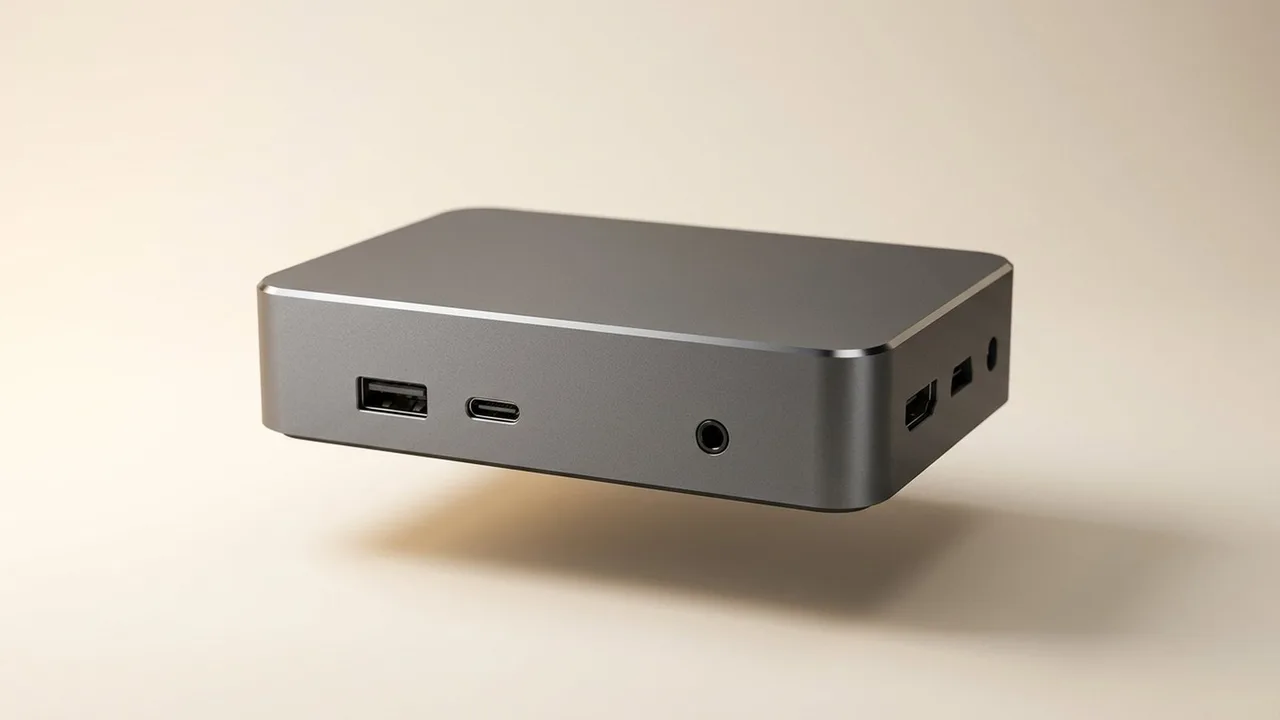
A dock turns one laptop cable into many: screens, keyboard, mouse, network, storage and sometimes charging. The useful question is not how many ports it has but which jobs it can do at the same time.
Connection type
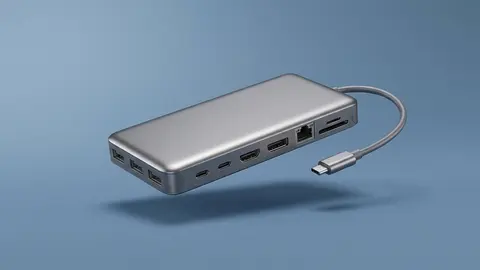
The Plugable UD-ULTCDL connects by USB-C, and Plugable lists host port requirements, including DisplayPort Alternate Mode for its native video output. The UD-3900 lists its own requirements and uses DisplayLink for both outputs. A USB-C socket on the laptop does not by itself confirm video or charging support. Plugable says the UD-ULTCDL needs a fully featured USB-C port such as Thunderbolt or USB4 with DisplayPort Alt Mode and power delivery, and that data-only ports will not work. Check the laptop's documentation.
Video outputs
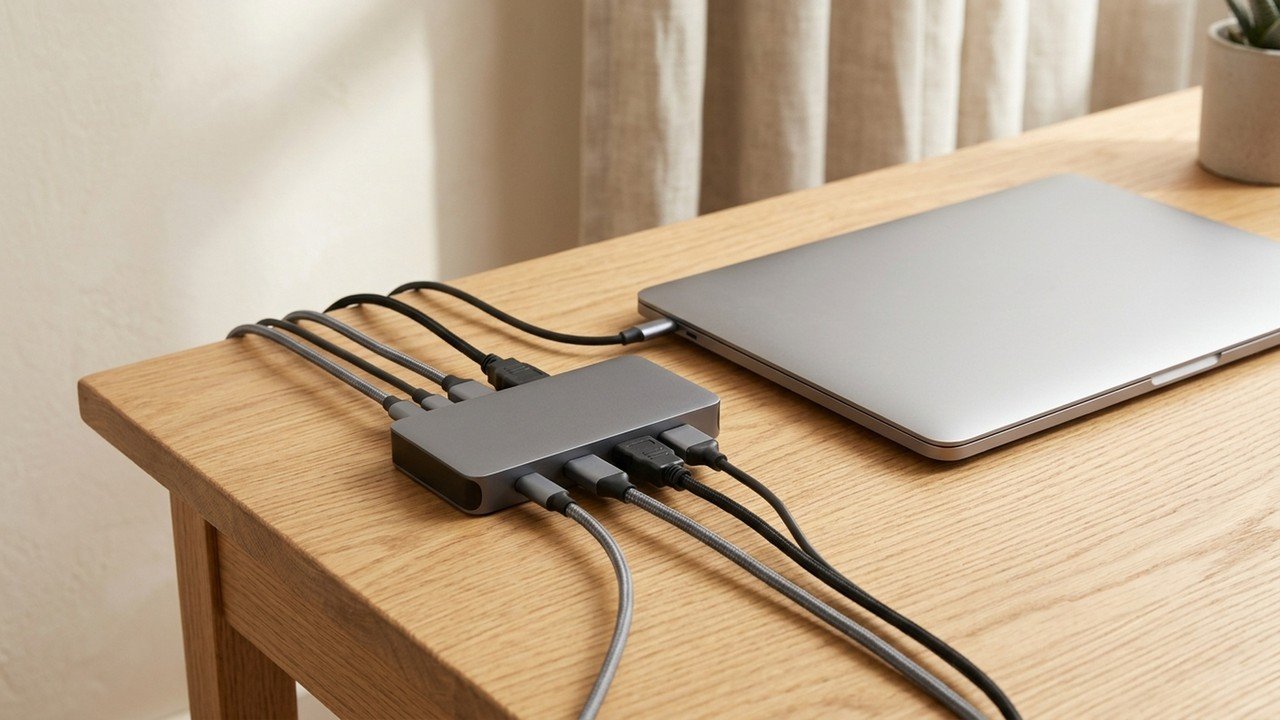
Count the screens you want, then read the resolution and refresh rate for each. Plugable lists the UD-3900 at up to 1920 by 1200 at 60 Hz on two HDMI outputs and no 4K. It lists the UD-ULTCDL with one output at up to 4K at 30 Hz and two at 1080p at 60 Hz. A dock that lists two screens will not give two 4K screens unless it says so. Intel's Thunderbolt 4 page lists support for two 4K displays at 60 Hz, which is the kind of headroom to look for if you want sharper or faster screens. Our multi monitor guide covers the laptop side.
Native video versus DisplayLink
Synaptics describes DisplayLink as sending video over USB with a driver. It adds screens when the laptop cannot, but it needs software and uses some processor power. Plugable also says the UD-3900 is not for gaming, and that the UD-ULTCDL does not support HDCP, which can matter for streaming.
Power delivery
Plugable lists up to 100 W charging on the UD-ULTCDL and none on the UD-3900. Compare it with the laptop's own charger. If the dock gives less than the laptop needs, it may charge slowly or not at all, and you would keep the original charger plugged in.
Ports you need
Count what you plug in: USB-A, USB-C, Ethernet, headphones and card readers, then add a margin. Everything shares one connection. Intel lists Thunderbolt 4 at 40 Gbps, which is more headroom than a plain USB connection when you run fast storage and several screens together.
Laptop compatibility
Operating system and laptop model both matter. Read the compatibility notes on the listing and the laptop maker's own display and port limits before you order.
Features that cause surprises
Plugable lists several limits on both docks. Neither supports HDCP on its DisplayLink outputs, so protected streaming video may not play there. Plugable does not recommend traditional KVM switches with DisplayLink docks, and only one computer can use the dock at a time. Touchscreens are not officially supported. The USB 3.0 connection can interfere with 2.4 GHz Wi-Fi and wireless keyboards and mice, and Plugable suggests moving the dock or using USB 2.0 ports. Windows brightness and color calibration controls may not affect DisplayLink screens, so you adjust those on the monitor.
None of these is a reason to avoid a dock. They are reasons to read the limits list before you order, especially if you use a webcam, wireless accessories or a color sensitive workflow.
Warranty and support
Plugable lists a two year warranty, a 30 day money back guarantee and lifetime technical support for both docks. That is a stronger written commitment than many dock listings give, but check the terms for your country.
A worked example
A laptop user wants two office screens and charging on one cable. The UD-3900 gives two screens up to 1920 by 1200 but no charging, so the charger stays plugged in. The UD-ULTCDL adds charging and a third screen, but only one output reaches 4K and only at 30 Hz. Both can work for documents. Neither suits a 4K screen at 60 Hz, for which a Thunderbolt 4 dock is the stated option.
Choosing between the two Plugable docks
If you want two office screens and already have a charger at your desk, the UD-3900 does the job with the simplest feature set. If you want one cable for charging, a third screen, an SD card reader and a front USB-C port, the UD-ULTCDL covers more, at a higher listed price. Neither is the choice for gaming, video editing, or 4K at 60 Hz. Plugable itself recommends the DisplayLink outputs for productivity tasks.
Whichever you pick, test every port and output in the first week and keep the packaging until the return window closes.
Reading the spec
Read docking station specs explained and the Plugable review.
Plugable Dual 1080p HDMI Universal Docking Station
Dual HDMI at up to 1920 by 1200 at 60 Hz, DisplayLink, no laptop charging.
Plugable USB-C Triple Monitor Docking Station
Three HDMI outputs, up to 100 W charging, DisplayLink for two of them.
Be careful with
Buying a dock before checking the laptop's video output, the dock's resolution limits and its charging power.
The practical answer
Match the dock to the laptop's port, the resolution and refresh rate of each screen and your charger. Then plug in once.
Questions people ask
What is a docking station?
A box that adds ports and often power to a laptop through one cable.
Do I need power delivery?
If you want one cable for charging and data, yes. Match the wattage.
What is DisplayLink?
A technology that sends video over USB, with a driver.
Will it work with my laptop?
Check the dock's compatibility list and your laptop's specs.
Sources and scope
Reference material is linked for the scope described below. This is not a claim that every statement or current retailer offer has been independently verified.
- Plugable USB-C triple display docking station UD-ULTCDL (Plugable): manufacturer specifications
- Plugable universal dual monitor docking station UD-3900 (Plugable): manufacturer specifications
- How does DisplayLink work? (Synaptics DisplayLink): technology explanation by the vendor
- What is Thunderbolt 4 and how is it different from USB-C? (Intel): interface standard
No hands-on testing or systematic reliability study was performed. Confirm current instructions, seller, model and box contents before ordering.